From Pencil Sketch to High-Res AI Art: A Beginner's Tutorial
AI can finish a rough sketch — if the lines are readable. How Canny and lineart conditioning work, how to prep a scan, and the prompt hacks that stop colour from ignoring your drawing.
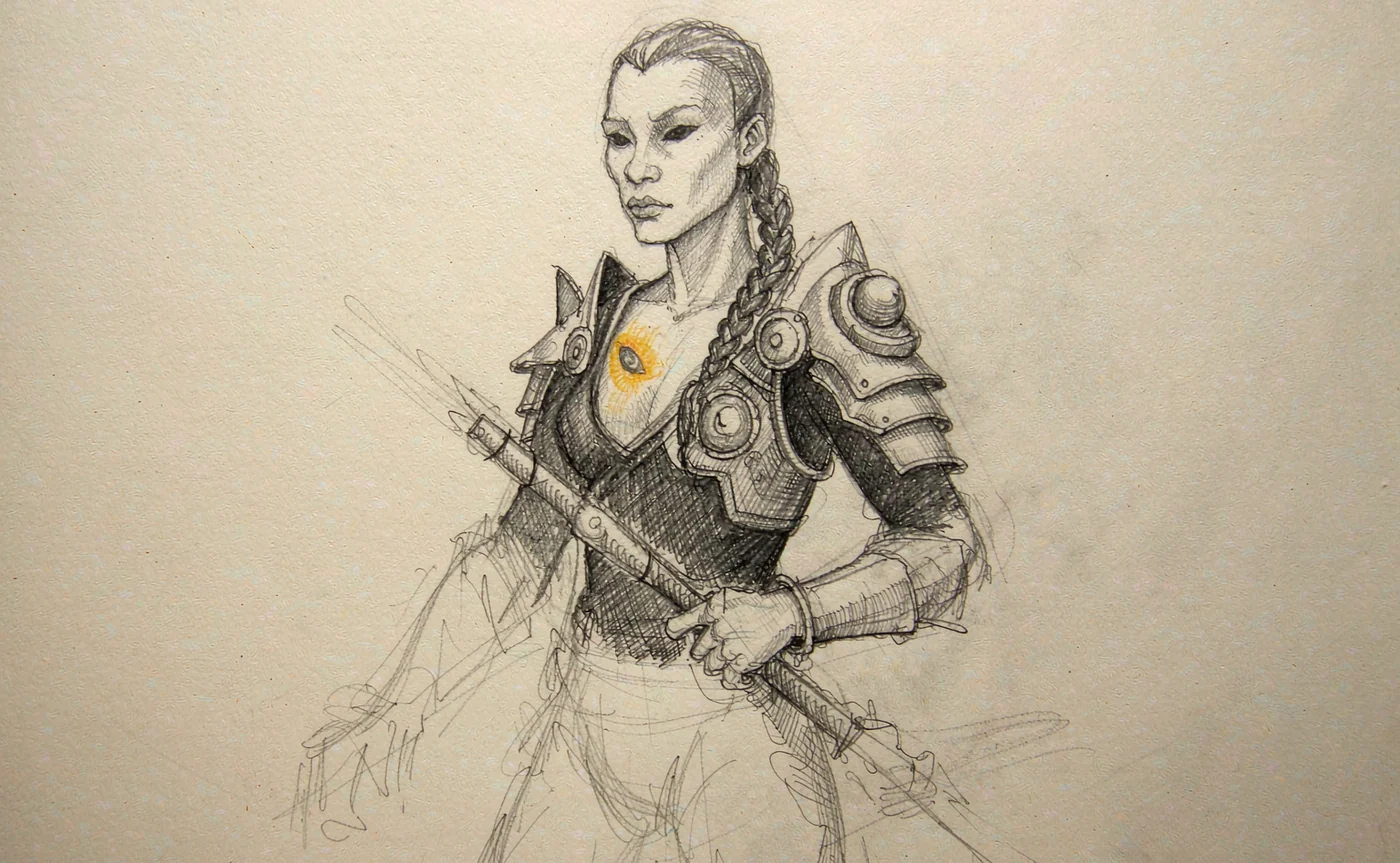
Yes, AI can render a rough pencil sketch into finished art. Whether it renders your sketch depends almost entirely on how readable the lines are when they reach the model — contrast, closed shapes, and a clear subject beat artistic quality every time.
This tutorial covers the mechanics of line-guided generation, how to prepare a sketch so it survives, and the prompt patterns that keep the model from painting over your composition.
Can AI really render rough line art into finished artwork?
It can, with an important distinction between two kinds of rough.
Rough but legible — a quick sketch where the outer contour closes, the subject is identifiable, and lines are darker than the paper — renders well. The model has enough structure to know what belongs where.
Rough and ambiguous — faint graphite, open shapes, lines that trail off, multiple overlapping attempts — renders badly. The model fills the ambiguity with its own idea of what you meant, and you get a polished illustration of something you did not draw.
The practical rule: if another person can tell what your sketch is at a glance, the model can too. If they have to ask, fix the sketch first. Two minutes with a darker pencil saves ten renders.
How line-guided generation works
Two mechanisms show up in every tool, even if the interface hides the names.
Edge extraction (Canny). The system converts your drawing into a black-and-white edge map, then forces generation to follow that map. Canny detects gradients and thins them to single-pixel edges, which makes it the most faithful preprocessor: outlines come out almost exactly where you drew them. It is the same edge structure a photo would produce, which is why sketch-to-image and photo-to-painting are cousins.
Line-art conditioning. A variant tuned for drawings rather than photographs. It tolerates varying line weight and softness — closer to a human sketch — at the cost of slightly less rigid adherence. Better for loose pencil, worse for precise technical linework.
In both cases there is a control weight. Start around 0.7: high enough to hold your composition, low enough that the model can still render interior detail. If the output ignores your drawing, raise it. If the output looks like a colourized line drawing with no depth, lower it.
If you are working in a managed tool rather than ComfyUI, the same lever exists as "how strongly should this reference be followed" — and the same rule applies: lock the structure, leave room for the paint.
Preparing your sketch: contrast and clean outlines
This is where most failures are decided. Four steps, five minutes.
1. Scan or photograph flat
Put the sketch on a flat surface, light it evenly, and shoot straight down. A phone photo at an angle introduces perspective distortion that the model will faithfully reproduce — your square becomes a trapezoid.
2. Push contrast until the paper goes white
Open the image in any editor and raise contrast until the paper is pure white and the pencil lines are near-black. Aim for a two-tone image. Grey middles are where the model guesses.
A fast alternative: apply a threshold adjustment so the image becomes strictly black and white. Crisp edges survive thresholding; smudges disappear. Losing a soft shadow line is usually a good trade.
3. Close your shapes
Anywhere the outline of your subject breaks, the model decides what is inside and what is outside. Trace over gaps before you upload — especially at the neck, the hairline, and where a limb overlaps the torso.
4. Crop to the subject
If the drawing occupies 40% of a page of white, crop to the drawing. Empty space becomes a prompt for empty composition, and the model will faithfully fill the margins with nothing.
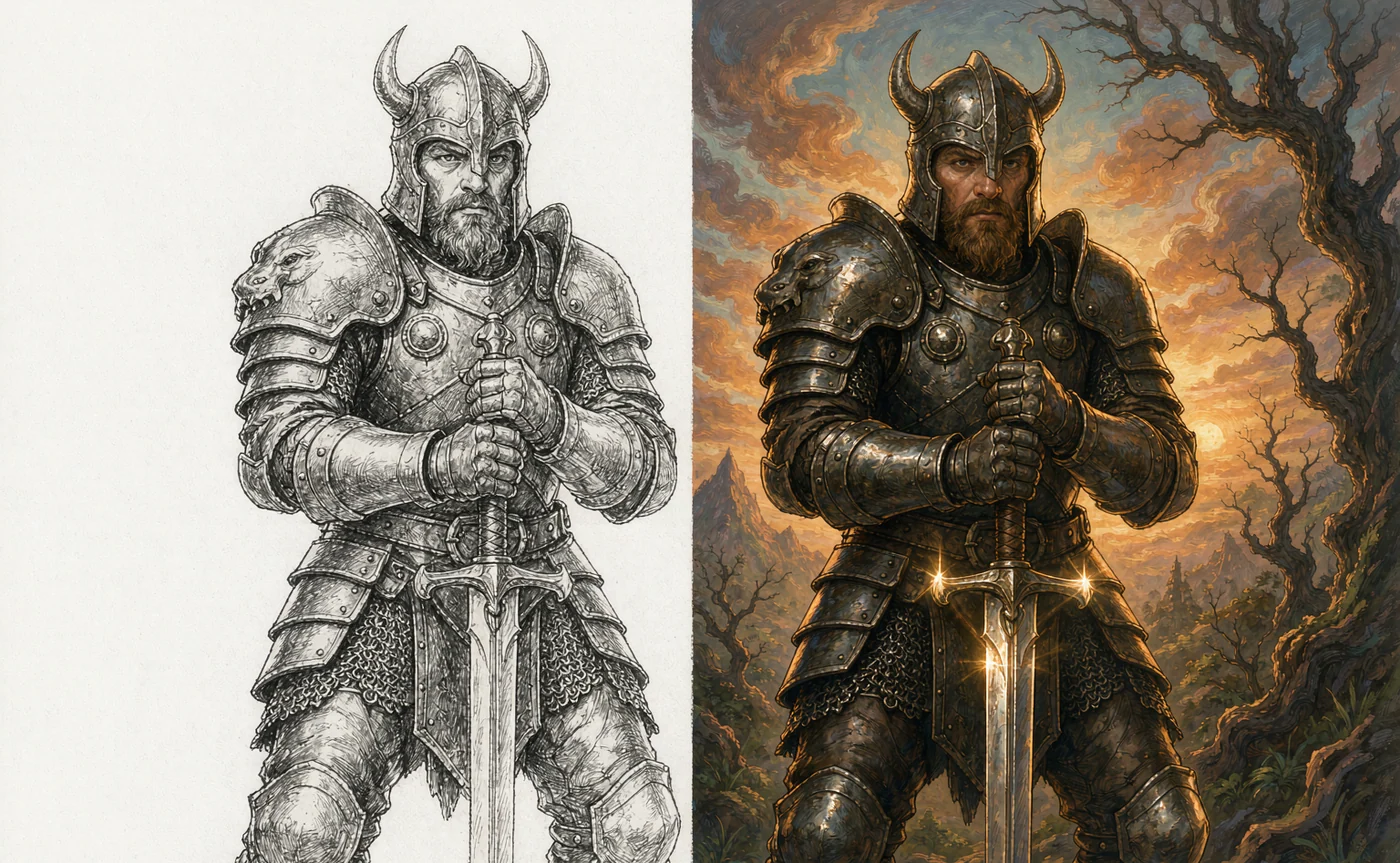
Rendering the sketch: a five-step workflow
Step 1 — Upload as a reference. Open image to image and add the cleaned sketch. This is what carries your composition into the render.
Step 2 — Describe the finished medium, not the drawing. The model can see the sketch; it needs to know what the sketch should become.
"coloured illustration, clean cel shading, soft ambient occlusion, warm daylight from the upper left, detailed background"
Step 3 — Say explicitly what the lines are. Models frequently interpret line art as a style rather than a structure, and return a colourized sketch. Add: "fully rendered illustration, no visible line art, painted surfaces" — or the opposite, "keep the line art visible, flat colours beneath", if that is what you want.
Step 4 — Match the aspect ratio to the sketch. A landscape drawing in a square frame gets cropped or letterboxed, and both change your composition. Set the ratio before you generate.
Step 5 — Iterate one variable at a time. Lighting, then palette, then detail level. If the first render loses the composition entirely, raise the reference influence before you rewrite the prompt.
💡 Want to try this yourself?
Upload a sketch and describe what it should become. Three images a day are free, and no account is needed.
Render your sketch →Prompt engineering for line art rendering
Five patterns that meaningfully change the outcome:
Name the render style, not the mood. "Anime cel", "oil study", "comic colouring", "concept-art speedpaint". Mood words like "beautiful" or "atmospheric" do nothing structural.
Specify whether lines survive. "no visible outlines" produces painted forms. "visible ink lines with flat fills" produces a comic. The model will not guess correctly on its own.
Give the light a direction. Line art has no shading, so the model invents it. "light from the upper left, cast shadows to the lower right" keeps the result consistent across a series.
Constrain the palette. Sketches invite the model to use every colour it knows. "limited palette: warm ochre, teal shadow, off-white" reads as art direction instead of chaos.
State the background policy. "simple gradient background", "detailed environment", or "transparent-looking flat background" — pick one. Undecided prompts produce a smeared middle ground.
A complete prompt assembled from these:
"fully rendered fantasy illustration, no visible line art, light from the upper left, cast shadows to the lower right, limited palette of ochre and teal, detailed forest background, painted surfaces, high detail"
Common problems, diagnosed
| Problem | What happened | Fix |
|---|---|---|
| Composition changed completely | Reference influence too low, or sketch too faint | Increase reference strength; raise contrast in the source |
| Result is a colourized sketch | Prompt did not ask for painted surfaces | Add "fully rendered, no visible line art" |
| Colour ignores the drawing | Ambiguous shapes; the model reinterpreted them | Close outlines; simplify the sketch to one clear subject |
| Odd extra limbs or objects | Sketch had overlapping attempts left visible | Erase construction lines before uploading |
| Style shifts across a series | Medium words varied between prompts | Copy-paste the same medium and lighting clause every time |
| Face looks nothing like the drawing | Head too small in the source | Crop closer; render at 2K or 4K |
Where this workflow pays off
Sketch-to-render is not a replacement for drawing. It is a way to compress the distance between a drawing you can make and an image you cannot paint.
Three places it earns its keep:
- Character design iteration. Sketch five silhouette variants by hand, render all five, pick one, then refine at full detail.
- Client concept work. A marker sketch plus a render conveys intent faster than a finished illustration, and clients can approve composition before you invest in detail.
- Comic and storyboard colouring. Line art stays the author's, colour and lighting come from the model — the workflow that keeps an artist's hand visible.
For a series, keep the prompt recipe in a text file next to the sketches. The recipe is half the style; the drawing is the other half.
FAQ
Do I need to draw well for this to work? You need to draw clearly, not beautifully. Clean shapes and closed outlines matter more than proportion or shading. A wobbly but readable sketch outperforms a sophisticated but ambiguous one.
Can I use a photo of a sketch taken with my phone? Yes, if it is flat, evenly lit and cropped to the drawing. Raise contrast afterwards so the paper reads white. Perspective distortion from an angled shot is the main thing that ruins phone captures.
Why did the AI add colour to a black-and-white sketch? Because it treated the drawing as a composition, not a colour specification. If you want monochrome, say so explicitly: "strictly black and white, graphite only, no colour".
What control strength should I use? Around 0.7 as a starting point. Raise it when composition drifts; lower it when the result looks like a colourized drawing with no depth.
Can I turn a sketch into a photorealistic image? Yes, and it usually looks uncanny. Photoreal rendering of a stylised drawing produces plausible skin on implausible proportions. If you want realism, start from a photo and use the sketch as a composition guide.
What resolution should I render at? 2K for screen, 4K if the result will be printed or cropped into a face. Line art upscales well because the structure is already defined.
Draw the structure, prompt the paint
Sketch-to-AI works on one principle: your drawing owns the composition, the prompt owns the surface. When the result goes wrong, it is almost always because one of those two took over from the other.
Clean the sketch until the paper is white and the shapes are closed, load it in image to image, and describe what the finished piece is made of rather than what it depicts. If you are converting photographs instead of drawings, the photo to watercolour guide uses the same structure-first logic.
Keep reading
Oct 28, 2026
How to Keep Character Consistency in FLUX.1: The Complete Guide
Faces drift because a seed is not an identity. Every method that actually locks a face in FLUX — PuLID, InstantID, FaceID, LoRA — and the reference workflow that needs no node graph.
Read guide
Oct 24, 2026
How to Turn Any Photo into a Masterpiece Watercolor Painting with AI
Why AI style filters produce mud and structure-aware rendering does not — plus the three-step workflow and prompt recipes for watercolor, oil, sketch and 3D render.
Read guide
Oct 21, 2026
AI Image to Image Blending: How to Mix Two Styles Without Making Mud
Blending two images is not averaging them. How reference conditioning merges structure and style, four rules that prevent muddy results, and a step-by-step dual-image workflow.
Read guide